










Link each worker to the correct shared identity and service-specific working conditions.
Before you start
- Verify the real email and employment start date.
- Prepare employee code, workplace and expected weekly time.
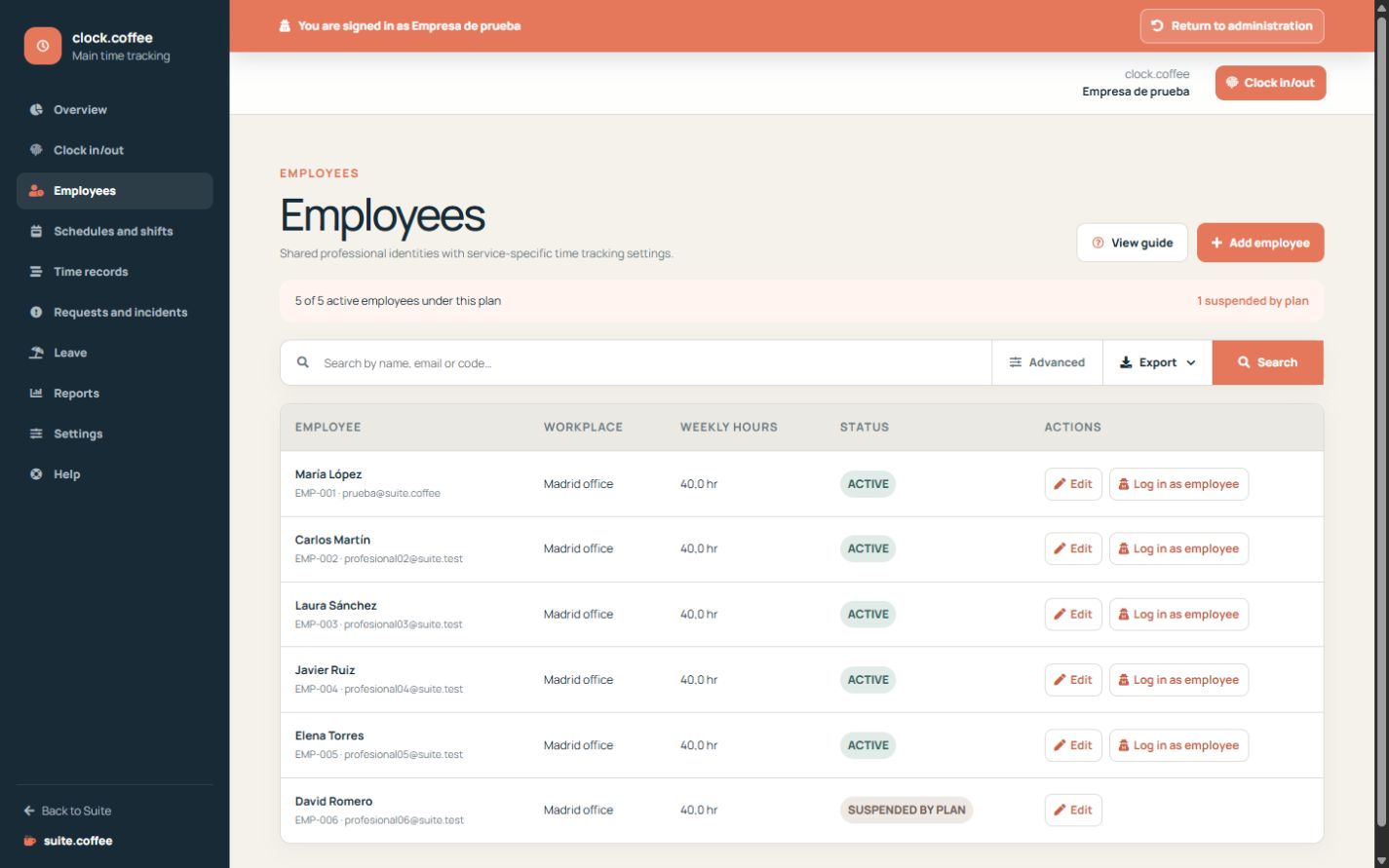
Add or link the person
Use the employee’s real email to create or link their shared professional identity. An existing Suite professional keeps their credentials; a new identity needs an initial password.
Complete operational data
Assign the employee code, timezone, usual workplace and expected weekly time. These values support schedules and reports but do not create punches by themselves.
Handle capacity changes
If access is suspended by the plan, the employee’s historical data remains. Review open shifts and future planning before changing who is active.
Step by step
- Open Employees and search before adding.
- Link an existing professional or create the required identity.
- Set code, timezone, default workplace and weekly minutes.
- Review access dates and active status.
- Save and verify the employee can open the terminal.
Final check
- No duplicate professional identity was created.
- Workplace and expected time are correct.
- Suspended access retains historical records.
Tip: Changing an employee profile does not create or alter punches by itself.