










Compare planned, worked and incident time in a clearly filtered period.
Before you start
- Choose the question, employees and dates.
- Keep shifts, leave and adjustments up to date.
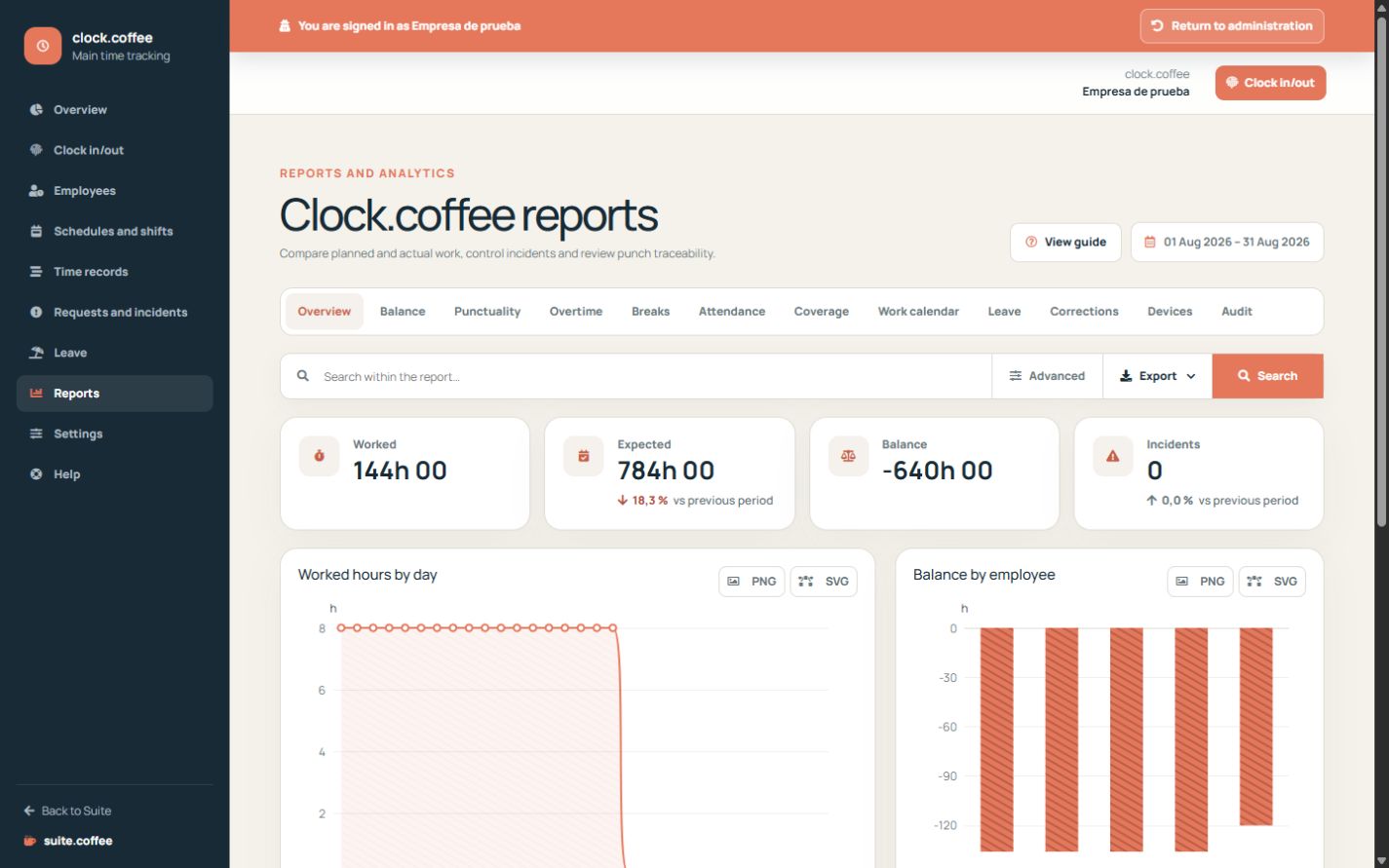
Set the scope first
Choose the date range and employee filters before interpreting totals. Compare expected and worked time together with breaks, open shifts and incidents.
Investigate differences
A variance can come from planning, an incomplete shift, leave or an adjustment. Open the underlying records before treating it as a final conclusion.
Export a snapshot
Exports contain the supported filtered scope at download time. Store and share them according to your organisation’s access and retention policy.
Step by step
- Open Reports and choose the period.
- Apply employee and supported filters.
- Compare planned time, worked time, breaks and incidents.
- Open underlying records for material differences.
- Export the current scope when a static copy is needed.
Final check
- Every comparison uses the same period.
- Open shifts are not treated as final.
- The export matches the visible filtered scope.
Tip: A variance is a signal to investigate, not automatically evidence of an employee error.