










Request the real absence period and follow approval without exposing private reasons to the team.
Before you start
- Choose the applicable leave type.
- Confirm dates and whether the absence is full or partial.
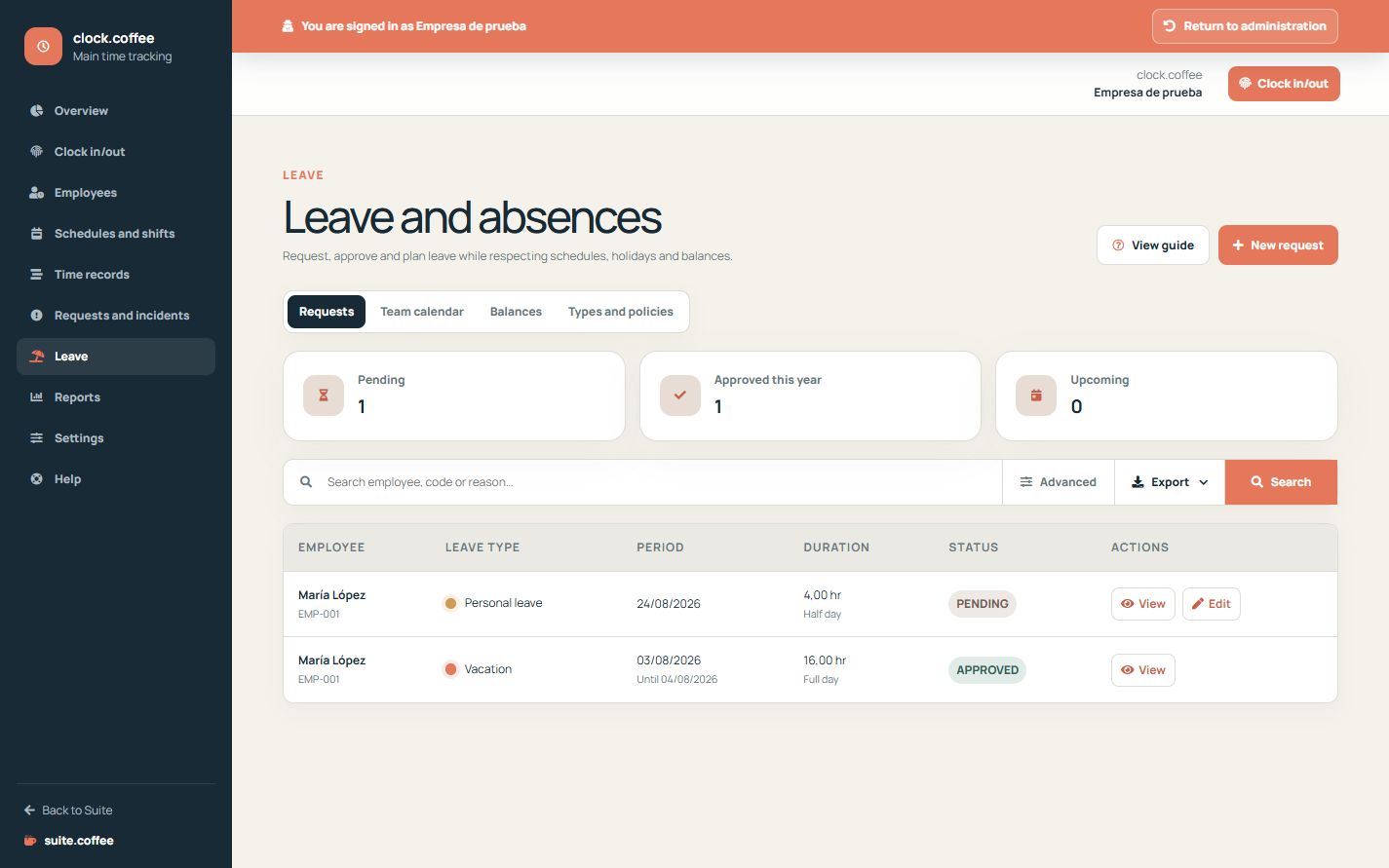
Choose the real period
Select the leave type and dates; a partial request must begin and end on the same day. Clock calculates only the employee’s expected working time inside that period.
Follow the request state
Pending requests can be reviewed, edited or cancelled according to their state and policy. Approval may reserve or consume balance and the daily breakdown explains the amount.
Use the team calendar appropriately
The team view shows availability without revealing private reasons or internal review comments to other employees.
Step by step
- Open Leave and choose New request.
- Select type, dates and duration.
- Add the necessary private reason.
- Submit and follow the pending decision.
- Use the team calendar to review availability without private details.
Final check
- A partial request stays within one day.
- Calculated time matches the work schedule.
- The final state and balance effect are clear.
Tip: Use the team calendar for availability, not for sharing private reasons or reviewer notes.